
Loyalty card (Fidèle by MEGH)
Fidèle by MEGH is your shop's stamp loyalty card, right on your customers' phones: no app, no paper card. One stamp per visit, and a reward when the card is full.
Fidèle is enabled by the MEGH team
The Loyalty tab appears in your dashboard as soon as Fidèle by MEGH is enabled for your shop. Don't see it? Write to us from the Support tab.
1. Set up your program
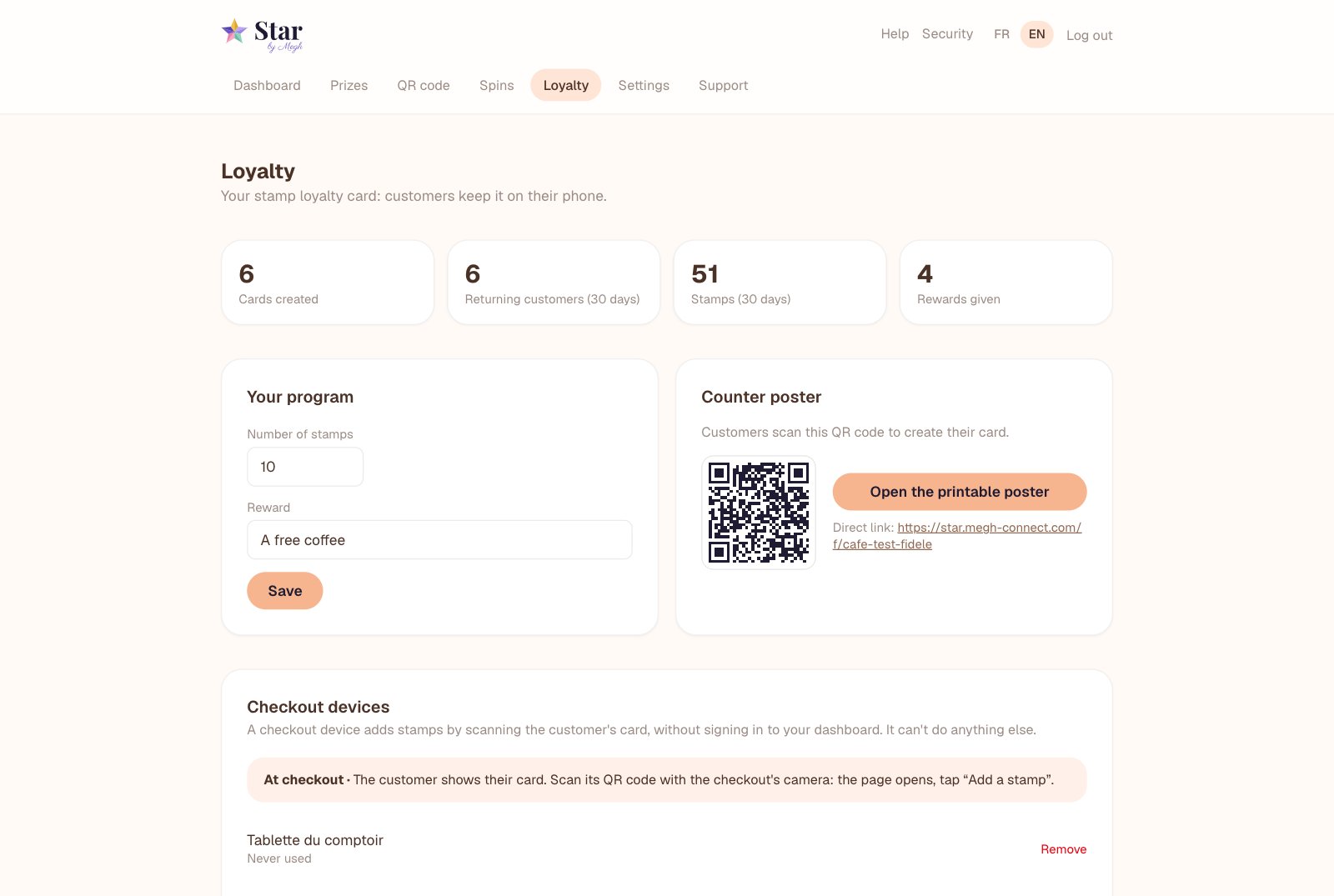
Open the “Loyalty” tab
At the top, four figures: cards created, returning customers and stamps over 30 days, rewards given.
Choose the number of stamps
From 3 to 20. Ten stamps is the most common choice.
Choose whether to ask for the customer's email
“Optional” (recommended), “Required” or “Don't ask”. The email lets you send your offers later to customers who accepted them.
Enter the reward, then click “Save”
For example “A free coffee” or “10% off your next purchase”.
Changing the reward along the way
You can change the reward and the number of stamps at any time: stamps already earned by your customers are kept.
2. Print the counter poster
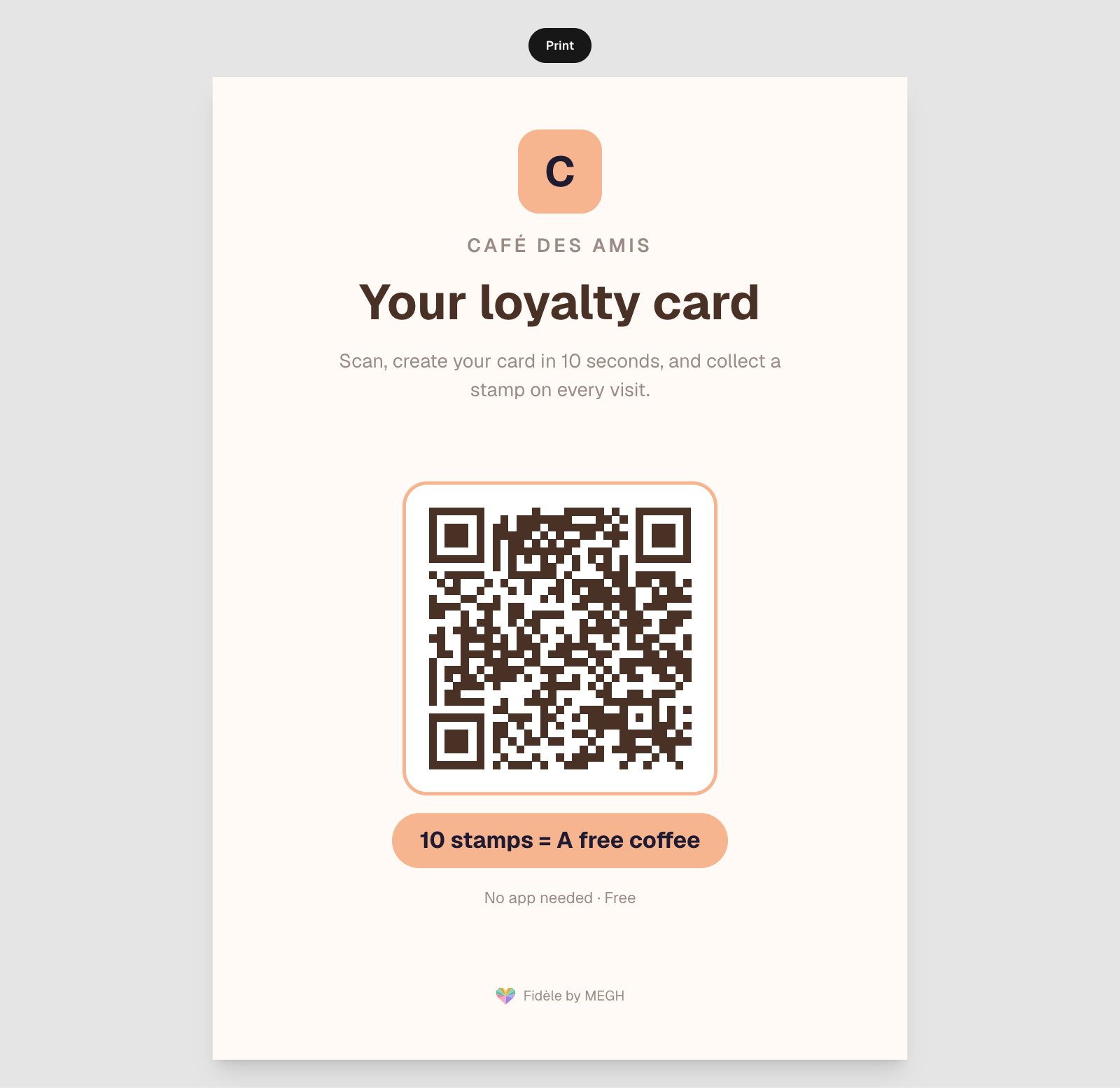
Click “Open the printable poster”, then Print. The A4 poster shows your logo, your colors, the reward and the QR code customers scan to create their card. Place it near the checkout, next to your Star poster if you use it.
3. Turn on your checkout devices
A checkout device is a phone or tablet that adds stamps without you being signed in to your dashboard. It can't do anything else: it can't see your customers or change your settings.
An employee's phone (recommended)
In “Add an employee's phone”, enter their first name
For example “Julie's phone”, then click “Create invitation”.
The employee scans the QR code with their phone camera
You can also send them the link by WhatsApp or text with “Copy link”. The invitation is valid for 10 minutes and works only once.
They tap “Activate this phone”
Their phone is now a checkout. They never need your password.
The device you're signed in on
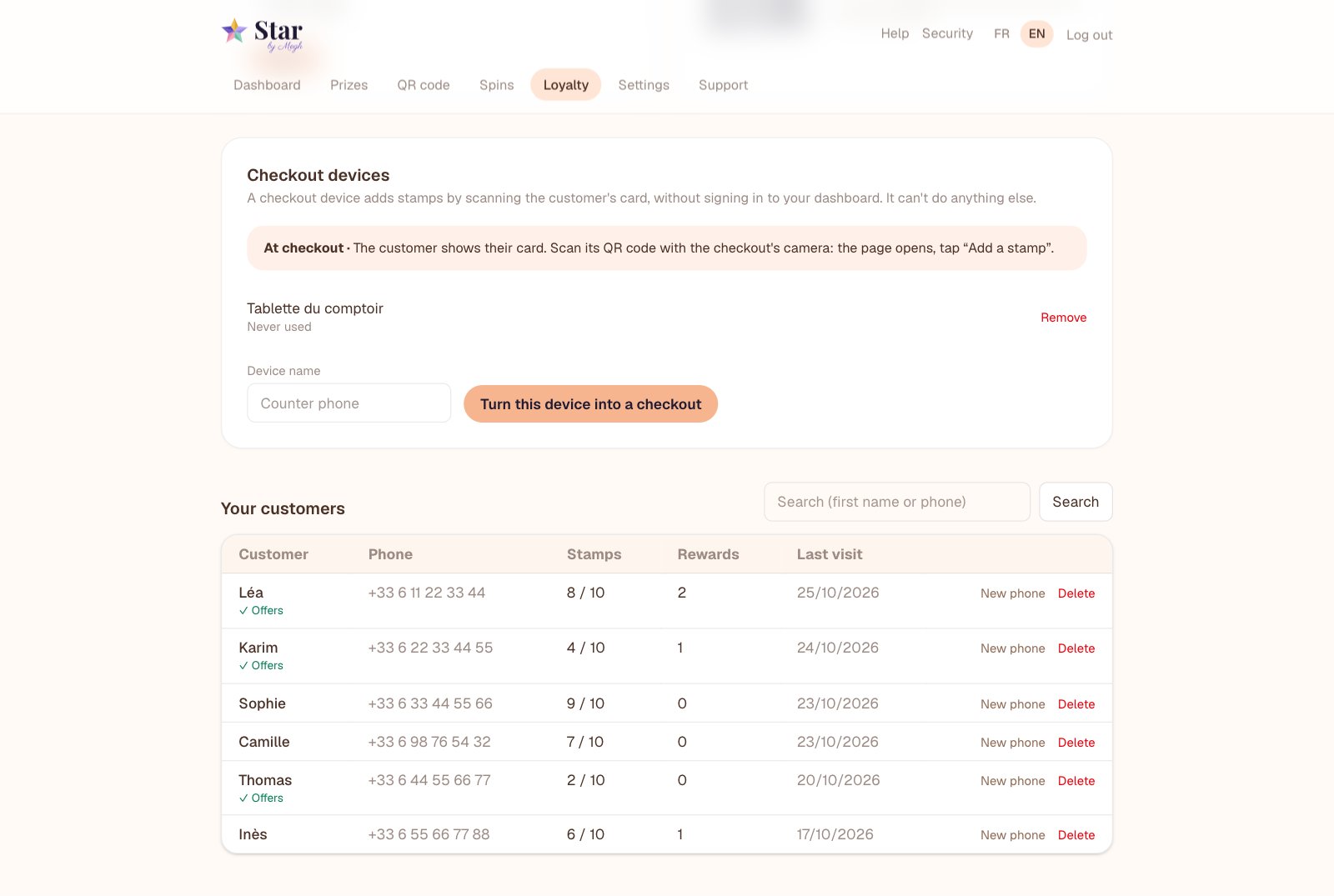
On the counter tablet or your own phone, signed in to your dashboard: give it a name and click “Turn this device into a checkout”.
An employee leaving, a lost device?
Click Remove next to its name: it can no longer add stamps.
4. What your customers see
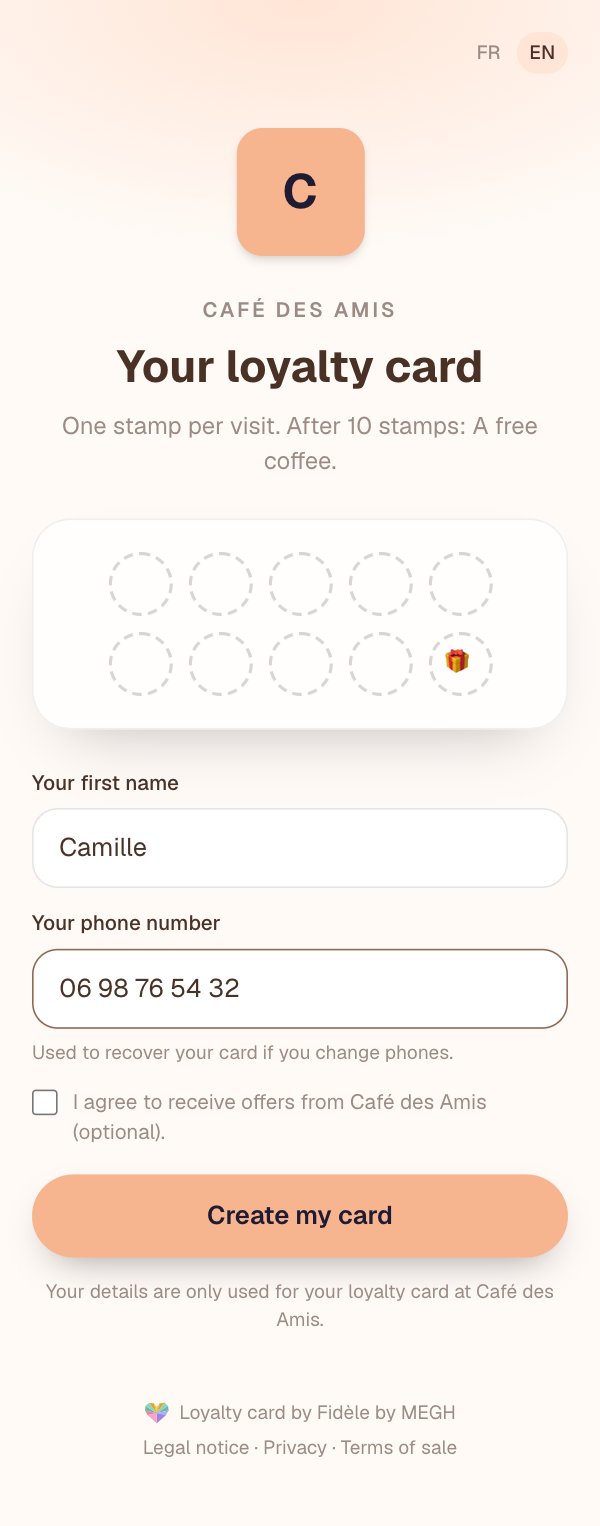
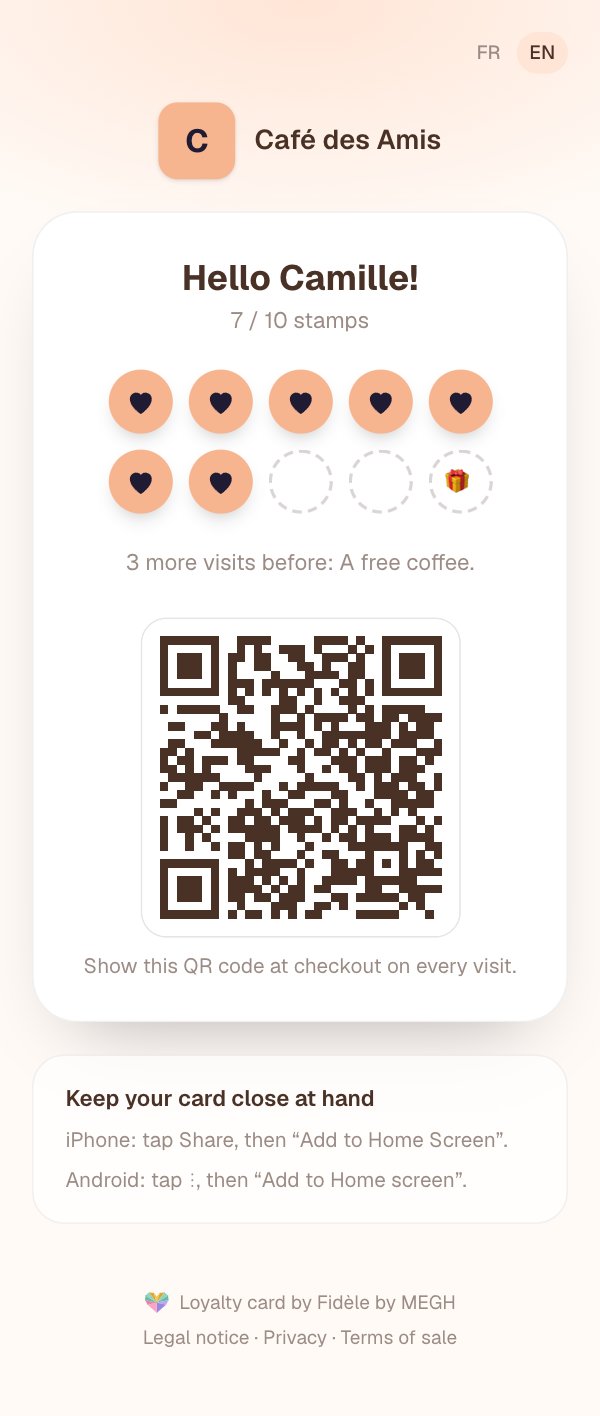
The customer scans the poster with their phone camera, enters their first name and number, and their card appears right away, in your colors. They can pin it to their home screen and open it like an app.
5. At checkout: add a stamp
The customer shows their card
The QR code of their card, on their phone.
Scan it with the checkout device's camera
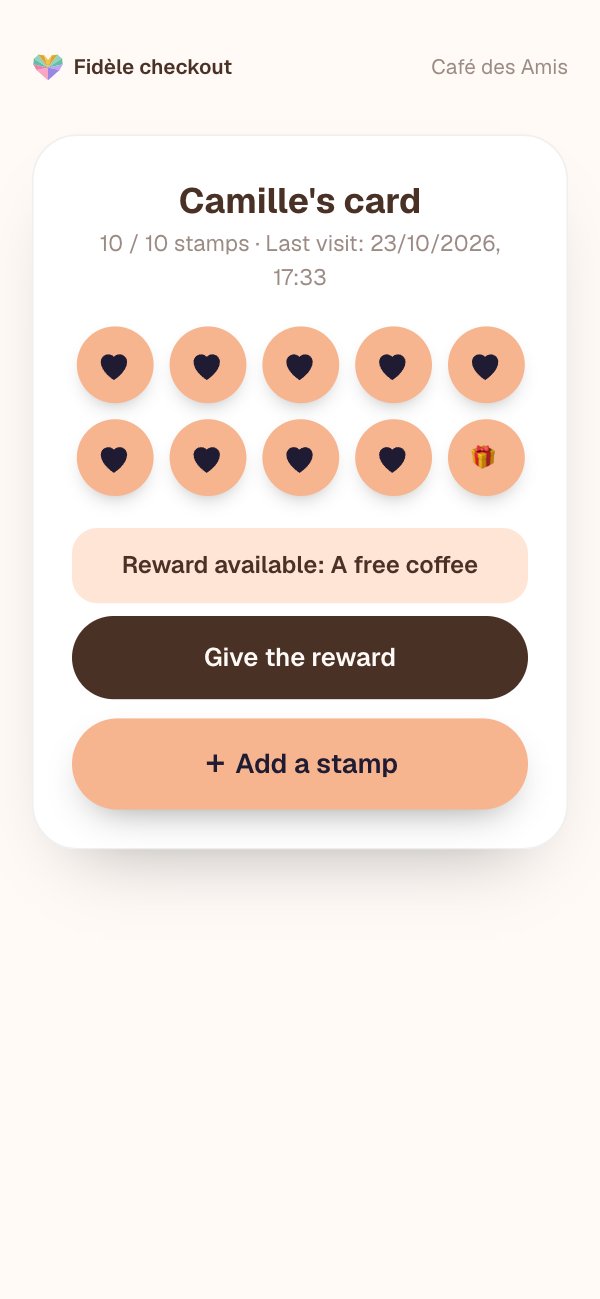
The card page opens, with the customer's first name and stamps.
Tap “Add a stamp”
The customer's card updates before their eyes, with a little animation.
When the card is full, the “Give the reward” button appears. Tap it when you hand over the gift: the card starts again from zero and the reward is recorded in the history.
One stamp too many?
Below “Add a stamp”, tap “− Remove a stamp” and confirm. The removal is recorded in the history with the phone that made it.
One stamp per visit
To avoid mistakes, a second stamp on the same card is refused for 30 seconds. The message “A stamp was just added to this card” simply means the first one went through.
6. Visit history
Every stamp and reward records the phone that added it. The Loyalty tab shows the last 50 visits (date, customer, action, phone) and, for each checkout device, its number of stamps over 30 days: you spot unusual use at a glance.
7. Your customers
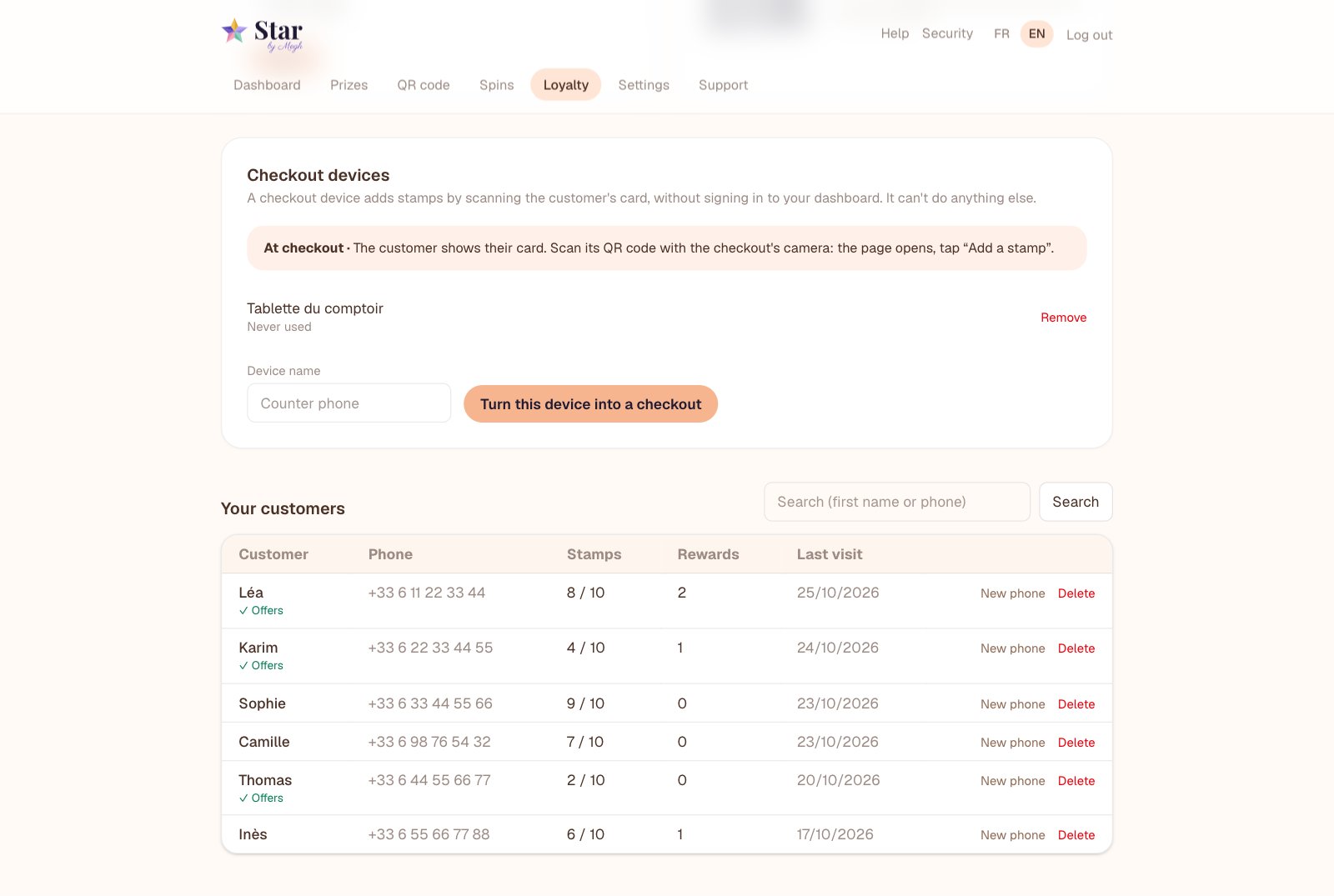
At the bottom of the Loyalty tab, the list of your customers: first name, phone, stamps, rewards received, last visit, and the “Offers” mark for those who agree to receive your offers. Search by first name or number.
Export your customers for your offers
The “Export my customers (Excel)” button downloads the full list: first name, phone, email, stamps, and the “Accepts offers” column with the consent date. Import it into your emailing tool (Brevo, Mailchimp…). The law requires you to send offers only to customers who accepted them, with an unsubscribe link in every message.
- New phone: your customer changed phones? Click, a QR code appears: they scan it with their new phone and get their card back. The old link stops working.
- Delete: at the customer's request, their card and history are permanently erased.
A customer changed phone or browser?
They scan the poster again and enter their number. Since that number already has a card, a “You already have a card here” QR code appears on their phone. Scan it with your checkout phone, check their first name and the end of their number, then tap “Move the card to their phone”: their card appears, with all their stamps, and the old link stops working. The card is never shown without this step at checkout.